Showing posts with label manual. Show all posts

Saturday, August 10, 2013

Dell 2330dn User Manual

Dell 2330dn User Guide contains the information you need when installing, setup, setting, configuring, maintenance and troubleshooting, operating instructions the Dell 2330dn.

Table contents of Dell 2330dn Manual
  • Finding Information
  • Printing
  • About Your Printer
  • Maintaining Your Printer
  • Operator Panel Menus
  • Administrative Support
  • Installing Optional Hardware
  • Troubleshooting Your Printer
  • Loading Paper
  • Specifications
  • Setting up for Local Printing
  • Appendix
  • Setting up for Network Printing
  • Licensing Notice
  • Software Overview
Dell 2330dn User Manual

Thursday, May 16, 2013

HP Envy 110 Manual

HP Envy 110 Manual  - 

Table of content for the HP Envy 110 Manual as follows:
  • HP ENVY 110 e-All-in-One D411 series Help
  • Get to know the HP ENV Y 110 series
  • How do I?
  • Print
  • Copy and scan
  • Use Web Services
  • Send and receive faxes with eFax
  • Work with cartridges
  • Connectivity
  • Solve a problem
  • Technical information
  • Index
HP Envy 110 specs and features:
  • Draf mode: mode: Color Input/Black Render: 300x300dpi and Output (Black/Color): Automatic
  • Normal Mode: Color Input/Black Render: 600x300dpi and Output: 600x1200dpi (Black), Automatic (Color)
  • Photot best mode: Color Input/Black Render: 600x600dpi and Output (Black/Color): Automatic
  • Max DPI mode: Color Input/Black Render: 1200x1200dpi and Output: Automatic (Black), 4800x1200 optimized dpi (Color)
  • Digital image processing
  • Twain-compliant software interface
  • 3.5-inch touchscreen control panel
  • support USB drive and card reader port
  • And many more
Download manual from hp.com here: HP Envy 110 Manual (English) 

Monday, April 8, 2013

HP LASERJET 1200 USER MANUAL eBook

Printer HP LASERJET 1200 basics : Quick access to more information, Printer configuration, Walkaround, Printer control panel, Media paths, Printer connections, Printer software, Printer information page, Printer media considerations...
Hp Laserjet 1200 user manual pdf
Printing tasks : Manual feed, Canceling a print job, Understanding print quality settings, Optimizing print quality for media types, Guidelines for using media, Choosing paper and other media, Loading media into the input trays, Printing an envelope, Printing multiple envelopes, Printing on transparencies or labels, Printing on letterhead and preprinted forms, Printing on custom-size media and cardstock, Printing on both sides of the paper (manual two-sided printing), Printing multiple pages on a single sheet of paper (N-up printing), Printing booklets, Printing watermarks...

HP LASERJET 1200 Maintenance : Cleaning the printer, Changing the pickup roller, Cleaning the pickup roller, Changing the printer separation pad, Redistributing toner, Changing the print cartridge...

HP LASERJET 1200 Problem solving : Finding the solution, Status light patterns, Paper handling problems, Printed page is different than what appeared on screen, Printer software problems, Improving print quality, Clearing jams

HP LASERJET 1200 Printer specifications : Environmental specifications, Power consumption, electrical specifications, and acoustic emissions, Physical specifications, Printer capacities and ratings, Memory specifications
 download - HP LASERJET 1200 USER MANUAL eBook PDF. We hope this HP LASERJET 1200 USER MANUAL.PDF can useful for you

Friday, March 29, 2013

Epson Artisan 810 User Manual

Epson Artisan 810 User Manual - Still the info from Epson. According to pcmag.com, whether youre looking for a home all-in-one (AIO) with high-quality photo output, a home-office AIO with fast speed and office features like faxing, or, better yet, a single AIO (or MFP, for multifunction printer, if you prefer) for both, the Epson Artisan 810 ($299.99 direct) should be on your short list. Following in the footsteps of the Artisan 800 that it replaces in Epsons line, the 810 leans towards a focus on home use, but it can also be a good fit for light-duty printing in a home office or for a dual role in home and home office.


Epson Artisan 810

The Artisan 810 offers both Ethernet and WiFi support, making it easy to share. It can print, scan, and fax over a network; work as a standalone copier and fax machine; and scan to e-mail over a network (something the 800 couldnt do) by automatically launching your PCs e-mail program and adding the scan as an attachment. In addition to faxing and e-mailing, the AIOs most notable office-centric feature is a 30-page automatic document feeder (ADF) to handle multi-page documents easily as well as give you a way to scan, copy, and fax legal-size pages, a feature that most offices can make use of at least occasionally.


The home printer focus starts with photocentric features, including high-quality photo output; the ability to print directly from PictBridge cameras, memory cards, and USB keys; and a 3.5-inch color LCD for previewing photos before printing. Also meant primarily for home use is the ability to print directly on printable discs, for more professional-looking labels for your music and photo collections.
Beyond that, the 810 retains the 800s ability to print graph paper and notebook paper, which can be useful in a pinch for any students in your house who run out of paper in the middle of doing their homework.

Download Epson Artisan 810 User Manual 
Buy the Epson Artisan 810

Epson Artisan 835 User Manual and Review

Epson Artisan 835 User Manual and Review - We provide to to you the review of this printer, including the user manual of this product. So continue reading guys. Pcmag.com explained that aimed squarely at home and light-duty home office use, the Epson Artisan 835 ($299.99 direct) is a good fit for either role alone or for both, in the dual role of home and home-office multi-function printer (MFP). In most ways, it carries on in the tradition of the Epson Artisan 810 ($299.99 direct, 4 stars) that it will be replacing in Epsons line as the 810 is phased out. However, while the 810 leans toward a focus on home use, the 835 is more evenly suitable for both roles, thanks to improved text quality.

Epson Artisan 835

Among the Artisan 835s more office-centric features is its 30-page automatic document feeder (ADF), which makes it easy to print, scan, copy, and fax multi-page documents as well as legal-sizes pages that wont fit on the flatbed. In addition, it can connect by both Ethernet and WiFi for easy sharing; print, scan, and fax, even over a network; work as a standalone copier and fax machine, and scan to e-mail, using your PCs e-mail program and adding the scan as an attachment.

Photo-centric features include the ability to print directly from PictBridge cameras as well as from memory cards and USB memory keys, using a 3.5-inch color LCD to let you preview photos before printing. Other features meant primarily for home use are the ability to print directly on printable discs, and a selection of stored templates in the printer for graph paper, notebook paper and other useful output. The 835 can also turn scanned photos, as well as photo files on a memory key or USB key, into coloring book pages—a nice extra if you have young children.

The 7.8-inch touch screen on the front panel is essentially unchanged from the one on the 810 but still worth mention as a crowning touch. Not only is it visually attractive, but the menus are notably easy to use compared with most of the competition.

Download Epson Artisan 835 User Manual
Buy Epson Artisan 835

Monday, March 25, 2013

Dell XPS M1730 User Guide Owners Manual

Dell XPS M1730 User Guide Owners Manual contains the information you need when installing, setup, setting, configuring, maintenance and troubleshooting, operating instructions the Dell XPS M1730.

Table of contents Dell XPS M1730 Manual
  • About Your Computer
  • Setting Up Your Computer
  • Using the Display
  • Using the Keyboard
  • Using a Battery
  • Using the Camera
  • Using GamePanel
  • Using Multimedia
  • Using Cards
  • Setting Up and Using Networks
  • Securing Your Computer
  • Cleaning Your Computer
  • Troubleshooting
  • Adding and Replacing Parts
  • Traveling With Your Computer
  • Getting Help
  • Specifications
  • Appendix
  • Glossary
Download

HP Laserjet P1006 User Guide Owners Manual

HP Laserjet P1006 User Guide Owners Manual contains the information you need when installing, setup, setting, configuring, maintenance and troubleshooting, operating instructions the HP Laserjet P1006.

Table of contents HP Laserjet P1006 Manual
  • Product information
    Product configurations ~ Product features ~ Identify product parts
  • Control panel
  • Product software
    Supported operating systems ~ Supported network systems (HP LaserJet P1500 network models only) ~ Device connections ~ Software for Windows ~ Software for Macintosh
  • Supported paper and other media
    Understand media use ~ Supported media sizes ~ Select print media ~ Special media for printing
  • Print tasks
    Print-quality settings ~ Load media ~ Print on special media ~ Canceling a print job
  • Managing and maintenance
    Replace the print cartridge ~ Printer information pages ~ Embedded Web server ~ Manage supplies ~ Clean the device ~ Change the pickup roller ~ Clean the pickup roller ~ Change the printer separation pad ~ EconoMode
  • Problem solving
    Problem-solving checklist ~ Status-light patterns ~ Clearing jams ~ Improve print quality ~ Media problem-solving ~ Printed page is different from what appeared on screen ~ Printer software problems ~ Common Macintosh problems ~ Network-setup problem-solving
download HP Laserjet P1006 user manual

Sunday, March 24, 2013

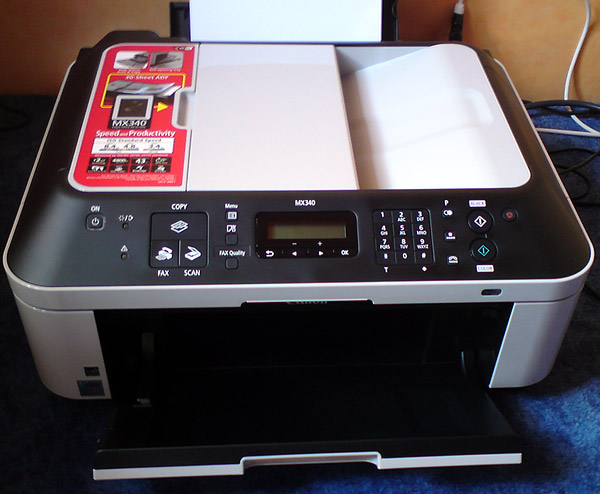
Canon Pixma MX340 User Manual

Canon Pixma MX340 User Manual
Canon Pixma MX340 User Manual contains the information you need when installing, setup, setting, configuring, maintenance and troubleshooting, operating instructions the Canon Pixma MX340. This user’s guide also contains the Software Section providing you with step-by-step instructions for using your Canon Pixma MX340, and how to use the supplied software utilities.

Table of contents Canon Pixma MX340 Manual
  • Check the Included Items
  • Remove the Protective Material
  • Connect the Telephone Line
  • Turn the Power On
  • Install the FINE Cartridges
  • Load Paper
  • Set Up for Fax Reception
  • Select Connection Method
  • Install the Software
  • Set Up a Wireless Connection
  • Use from Additional Computers
  • Try Using the Machine
    Try Copying ~ Print Photos from a Computer ~ Send Faxes
  • Maintenance
  • Specifications
  • download getpdf