Showing posts with label printer. Show all posts

Thursday, August 8, 2013

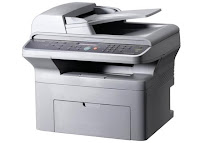
Sharp AL 1655CS laser copier scanner printer


OVERVIEW:  The Sharp AL-1655CS all-in-one offers the copying, scanning, and printing features of earlier models, plus Ethernet network connectivity and 2-sided printing of 2-sided originals.

PROS:
At 51 pounds, the all-in-one copier has a footprint 20.4” x 19.8”. The copier is a little large to put on a desk but will feel right at home on any credenza, and the second paper tray brings it at a height comfortable for someone standing next to it to manually make copies or scans.

Having built-in Ethernet network support and a hi-speed USB, the AL-1655CS is right at home either in the middle of an office floor or connected to a secretary’s computer. It gives an office with multiple computers to be able to utilize one machine for printing instead of having to buy a printer for every workstation.

Sharp has made some major improvements on the AL-1655’s control panel, making it even more useful than before. Now users have more programming preset control at the panel, plus the alpha-numeric display makes troubleshooting easier than with earlier models.

The AL-1655CS uses a stationary 8½” x 14” platen for scanning instead of a sliding platform to keep its footprint no bigger than its physical size.  The automatic document feeder allows for 30 double-sided copies to be made up to legal-size: more originals can be fed in as the level lowers. By scanning the original once and storing the image into its 10MB memory allows the AL-1655CS to produce copies at the rate of 16 pages per minute, up to 99 copies.

Unlike earlier models, the auto-doc feeder of the AL-1655CS can automatically scan 2-sided originals and create 2-sided copies. When you think of all the times you had 20 pages of 2-sided originals and the hoops you had to jump when a copier could only read one side, this feature alone makes this worth buying.

Another nice feature the AL-1655CS has (if you use the automatic document feeder) is the ability to physically shift the position of each set of copies in the output tray for easy collating and stapling. This is achieved by pressing the Electronic Sort (or E-Sort) button on the control panel. The multi-page original is scanned first into the 10MB memory, then copied in order. This offset sorting feature is rarely found on other desktop copiers or all-in-ones.

The AL-1655CS has three different exposure modes & resolutions (auto, manual, photo). Automatic (or default) resolution is 600 x 300 dpi. “Photo quality” is 600 x 600 dpi at 256 grayscale levels. The magnification can be changed from 25% to 400% in 1% increments or in 8 jumps.

This Sharp has two sliding paper trays, each holding up to 250 sheets of either letter (8½” x 11”) or legal (8½” x 14”) size paper. The two-tray feature is especially nice in an realty or legal office where legal and standard size papers are often used. Non-standard sizes from 3” x 5” up to 8½” x 14” can be placed singly on the scanning platform, or up to 50 sheets placed on the multi-purpose flip-tray on the side of the copier.

CONS:
During its prime, a 16 ppm copy speed was impressive for a small copier. In truth, the touted 16 ppm speed can only be achieved at lowest resolution, but that’s the caveat for any printer specs. Don’t expect the faster print speeds of 20 ppm or more that’s typical of current monochrome laser printers.

As this was one of Sharp’s first attempts at network copiers, it runs on the slower 10BaseT and cannot be connected to a hub or switch that cannot auto-switch between the two speeds.

With all the improvements made with the AL-1655CS, it’s strange that Sharp reduced the resolution for the scanning down to 600 x 600 dpi. Older CS models, while having the usual 600 x 600 for printing and copying, could at least color scan images up to 600 x 1,200 dpi.

Sharp’s does not offer PCL or PostScript print emulation. Instead, Sharp provides their own SPLC print emulator. For most printing users won’t notice any difference in performance, and considering the low resolutions of this all-in-one, it’s unlikely any high-end Adobe graphics will be going to this unit anyway.

INK / TONER NEEDS:
Starter toner cartridge that comes with the AL-1655CS will last for only 2,000 sheets, so it’s a good idea to place an order for more toner when you get the all-in-one.

The AL-1655CS has separate toner and drum to help reduce overall consumables costs. Sharp offers a choice for toner: the standard-size toner (4,000 pages at 5%), or the High-yield (6,000 pages) unit. The drum unit will need to be replaced ever 18, 000 pages or every 3rd toner replacement.

During the course of changing toner, people often forget to keep track when it’s time to change the drum.  Combo-packages are available that offer the drum with several toners. By the time the toners are consumed, the remaining drum is replaced. These combo-packages make maintenance easy and increases overall longevity and print quality.

SOFTWARE:
Included is Sharp’s desktop document management software. The software does a decent job in giving you control of the unit’s various printing and scanning functions.
Tuesday, August 6, 2013

Reset Ink Level Printer Canon Pixma iP1800 Using iPtool

I get this tutorial from forum http://www.fixyourownprinter.com solve the ink level error in canon Pixma iP1800/Canon Pixma iP1880. Problem in the canon cartridges after refillled, the ink level never reset from the original empty status and you can’t print at all since the ink level are reporting that the cartridges are totally empty.

If you have the like that, try this to solve the problem.
  1. Press power button while plug in the powerchord – green lamp.
  2. While hold the power button press resume button twice – orange blink and return to green.
  3. Release the power button, Then the pc will recognize new printer install.
  4. Then run the iptools from software
  5. Click the reset black reset color
  6. Click the reset main and reset platen. You will see in the iptol menu that the ink level will be reseted and the WP and WM will set to 0 and new cartridege installed. then exit
  7. Restart the printer
If the problem still occured, do the same procedures from 1 to 3 then.
  • Click the eeprom reset botton
  • Wait for for a second the menu will be resetted and the printer will initialized.
  • Turn off the printer then turn on and try to print..
by the way i recognize the printer that if u park the head of printer in the replace ink area position, there will be a blinking error u will notice after a few print or after used you need to reset the eeprom in iptools.

Tuesday, June 4, 2013

Dell 3110cn Laser Color Printer Review


Overview:
Another great thing about the global technological progress is its parallel process of lowering prices. High quality technological products are becoming cheaper and cheaper and therefore affordable to everybody and are no more reserved only for the richest. Dell 3110cn laser color printer is one such product.

With its possibilities of 600 x 600 dpi color printing, 17 ppm, or 31 ppm of deep black printing and the built in Ethernet port, Dell 3110cn laser color printer will make a very useful office tool, at a really reasonable price.

Pros
Dells robust 3110cn laser color printer has quite large dimensions (53 pounds of weight, 18.5 inches tall, 16 inches wide and 19.1 inches deep) which makes it even bigger than the rest of the similar performance models. But it is after all a color printer, and four toner cartridges however do take up some space.  

The original Dell 3110cn laser color printer is a non-duplex model, with the input tray capacity of 250 sheets of paper and the 150-sheet multipurpose output tray. Types of paper that it can successfully handle is legal and the letter-sized paper. Original model however has a possibility of many add-ons, such as duplex, or a version suitable for a higher quality paper, for the color printing. 

This convenient office device has a very good network connectivity features; it comes with the built in 10/100BaseT Ethernet and the USB and Parallel port, for the direct PC connection and network printing. The initial printer memory of 128MB that can be increased to impressive 1152MB is a real advantage which makes it extremely useful office printer.

Dell’s 3110cn model has great printing speed performances. The max printing resolution of this printer is 600 x 600 dots per inch, and it turns 31 pages of sharp and precise black and white prints per minute, at the same time saving the toner by using only black color. Color prints can be delivered in a quantity of 17 pages per minute, which is still middle to high class performance for this category of printers.

The Dell 3110 laser color printer’s control panel is basic, not very demanding to handle. Its LCD displays 16 x 2 character ‘keyboard’ with no unnecessary and confusing commands, which is a rare quality these days. Network settings can be operated remotely.

Cons:
This printer is a heavyweight model, and because it is designed mostly for home and small office use, its dimensions could be considered its disadvantage. It is however, inevitable, because of the amount of space that color printers need for the toner cartridge. In addition, the printer should be handled cautiously when opening the front panel, because its light sensitive parts are not protected enough. Some objections have been noticed on the complicated toner replacing procedure.

Dell C3670dn Printer Review


OVERVIEW

All the office printing jobs can be well done very fast, by choosing the Dell C3760dn. If you need to print a very high number of pages and in the same time you need quality printing, this printer is the best choice in its price range. You will not have to pay a very high amount of money on refill either. It is ideal for an office environment because Dell C3670dn is connected to the internet through Ethernet and it has USB ports for various special needs. Because of features like auto duplexing, the efficiency of printing was dramatically improved. Therefore, if you need a printer with low maintenance costs which is able to finish the entire job in time, Dell C3760dn is the perfect choice.

PROS

It can keep 550 sheets in the main tray, 150 sheets in the multi-purpose tray and 220 pages in the output one. However, if you think that you need more space for paper you can simply buy an additional 550 sheets tray.

You can simply place the printer on a table, because it weights around 60 pounds and its dimensions are 17” x 19” x 15. It is not recommended to be put on a desk, because the printer is too heavy.

The printing rate is 36 pages per minute and because of this fact you will be able to print a very high amount of pages in white & black and colour very fast. You can easily print from a USB device, thanks to the existence of some USB slots on the lateral side of the printer.

The energy consumption will be lower as well as the electricity bill and the carbon footprint, because of Eco-Toners and eco-saving programs like Sleep Mode.Replacing the black toner costs just 1.5 cents per page, which is very low.

The memory of Dell C3760dn is 256 MB, but you can add another 512 MB. You have just one year warranty, which is the standard, but you can increase it to 4 years. You shouldn’t exceed 80.000 pages per month if you want to avoid technical issues.


CONS

You will want to save your color toner, because you need to pay up to 5-7 cents per page when you replace it.

Even though printer’s performances on Windows are best, when you will hook the printer to a MAC platform, you will be able to print only 15 pages per minute. Dell’s C3670dn performance on MAC can’t be considered extraordinary.

Friday, May 31, 2013

Dell W5300 Laser Printer config page

On the Dell W5300 printer, you can print out a network setup page that gives network information like IP address and DHCP status, as well as network card specs and active protocols.  (This page does not include the printers page count, however.)  To print the network setup page:

- Press the right arrow on the Menu button until "UTILITIES" is displayed on the screen.
- Press the Select button.
- Press the right arrow until "PRINT NET SETUP" is displayed.
- Press Select.

Tuesday, May 28, 2013

HP Color LaserJet CP1525nw Printer Review


Overview:
If you need a professional color printer that is kind to the environment and to your pocket, HP Color LaserJet CP1525nw is the right choice to make. It will deliver high quality images that would satisfy even the pickiest marketer who takes pride in delivering only colorful materials. The printer can be connected to the Internet and that’s why it is suitable for working environments. People can use it regardless of their location. The design looks really elegant because of its round edges in spite of its dimensions of 15.7 x 17.8 x 10 inches and 40 pounds weight.
Pros:
HP Color LaserJet CP1525nw can be connected wirelessly to the internet or through an Ethernet port, thus making it possible for employees to print from any system that has the HP ePrint software installed. It’s easy to set up the printer and once you do that, you will enjoy a wide range of tools and you can also calculate the cost per print. It comes with a built-in server that is protected by a password. You can disable or enable parts of the network as you like.  In order to optimize the speed and quality of the prints, you can pre-configure shortcuts according to your needs.
A great advantage of this printer is its ability to stretch the duty cycle from 250-1000 pages up to 30k pages. This can come in-handy for those organizations that need to print large volumes of work regularly. Apart from that, the resolution of 600x600 dpi and the HP ImageREt 3600 technology will make a difference when it comes to print clarity regardless of the printing mode (black or color). It operates at a speed of 12 letter A sized black and white pages per minute and 8 colored sheets of the same dimensions.
This model has a CPU that runs at a speed of 600 MHz and a memory of 128 MB that can easily be upgraded to 384 MB. It’s a very quiet printer because the acoustic level doesn’t surpass 48 dB so that you are not annoyed by noises. The input tray located at the bottom of the device can’t hold more than 150 pages and the output that has a middle-top position won’t carry more than 125 pages. You can print docs of sizes between 3 x 5 inches and 8.5 x 14 inches.  PCL5, PCL 6 and PostScript 3 are the only languages that this printer recognizes. Because it has a DIMM system, the memory will be modified to 25MB with 144-pin DIMMs if you decide to upgrade.
Although the resolution of the screen could be improved, the 2-line LCD with 16-character display does its job perfectly. The CPU makes it possible for the HP’s Color LaserJet CP1525nw device to print at an amazing speed of 20 pages per minute. However, this value varies depending on how complex the document is. If you are into multitasking and want an affordable device that won’t break down soon, this model is perfect for you.
Cons:
If you are working in graphic design, HP Color LaserJet CP1525nw isn’t the best choice for you because there are other printers out there with a resolution higher than 600x600 dpi. Photographers won’t like this resolution either. It consumes 295 watts but this is not a big inconvenience if you consider its capabilities. However, this model doesn’t come with built-in fax and copy features which could be useful for business users who fax documents on a regular basis.

Monday, May 27, 2013

Brother MFC 9970CDW Printer Review


Overview
The all-in-one Brother MFC-9970CDW will save you not only time, but money and space as well. You will be able to get any tasks done fast using the print, copy, and scan capabilities of this machine. There is also a touch screen control panel feature that will save more time and effort on your part. You can even print or scan your work from a USB flash drive, which a lot of businesses seem to need to have this option nowadays. This printer will provide your office with the efficiency it’s looking for, at a price that won’t break the bank.  Overall, your small or medium sized business with low to moderate print, scan, or copy needs will be well suited with this machine.

Pros
The Brother MFC-9970CDW weighs about 63 pounds and has dimensions of 20.9 inches high x 19.3 inches wide x 20.7 inches deep. It would be well suited for an area or room nearby, so that it won’t be in the way near any workstations. The printer can fit easily on a table or large desk. Two people will probably have to carry it and set it up due to its larger size.
Duplexing is standard on this model. This feature allows for work to be printed on both sides of the paper. You can save costs on purchasing paper and will give your company a ‘greener’ edge over competitors at the same time.   The scanner is also duplex-ready, and can read both sides at once.
The printer has a display that is a 5” color touch control panel. This makes selecting your options extremely quick and simple.
Wireless connectivity is another great feature included on this model. This makes it easy and quick for both users and guests to do the jobs they need.
30 pages per minute is the printing speed of this machine. It prints just as quickly whether doing black & white or color. Even the largest printing jobs can get done just as fast.
Cost-per-page for black & white is 2.7 cents and color is 13 cents.
The paper tray holds up to 250 sheets, and an ADF (automatic document feeder) has the capacity of 50 sheets. If there are larger printing needs, there is an optional tray you can purchase that holds 500 sheets, making the total capacity 800.
 
Cons
While the text quality of this printer is outstanding, the graphics and photo quality falls a bit short. If you are going to be printing a lot of images, this is probably not the printer for you.
Considering the fact that the paper capacity of this printer is on the smaller side while the speed is quite high, you will be running through a lot of paper very quickly. This means it can get quite bothersome to constantly have to be refilling the paper tray.  

Wednesday, May 22, 2013

Samsung ML 2525W Printer Review


Overview:
If you are looking for a printer to use at home, Samsung ML-2525W is perfect for you because of its wireless capability and above average performances. Although it’s not the fastest printer in the world, it still performs better than similar devices in this price range.
Pros:
The older model ML-2525 couldn’t offer you the possibility to get rid of cumbersome USB wires. This device on the other hand solved this problem for you. Thankfully, you will maintain your house neat without unaesthetic cables lying in the middle of the room.
The one touch printing feature could be this device’s secret weapon that urges many people to take the money out of their pockets and make a purchase. You literally press a button on the control panel and your desktop screen is quickly printed out. Still, it’s necessary to pass about 9 seconds between the moment when you press the Print Screen button and the one when you get your print. This is absolutely normal because it takes a bit to process the information. Other printers have a longer first page out time. If you need to print only a section of a larger doc you can hold the same button down for 2 seconds and the print active window will appear to input the necessary commands.
This model could be used in home offices too, because it comes with a large paper drawer which is perfect for a relatively big volume of work. We are talking about 250 sheets paper chamber and an extra multipurpose space where you put special media like envelopes, card stock or even transparencies.
Another feature that could come in handy in a home office is the software AnyWeb which comes along with the device. This was designed to help you print data directly from the web or store it in digital formats (PDF and TIFF) for later. What’s unique about this software e is that you don’t need to crop or resize the data when you need to print it in that very moment. Simply drag & drop it in the software’s blank page and hit the print button.
Cons:
As you learnt in the first paragraph, Samsung ML-2525W doesn’t perform amazingly in terms of printing speed. The rate of 24 letter size or A4 pages can be considered to be average, but if we take a look at its overall performances we will notice significant improvements since the ML-1910 and ML-1915 models were launched. Well, nothing’s perfect and this model is no exception. If you are a speed junkie you should probably choose something else.

Tuesday, May 21, 2013

Monday, April 8, 2013

Samsung SCX 4725FN 4 in 1 Multifunction Network Laser Printer


OVERVIEW:  Now days, most of the “all-in-one” printers in stores today don’t have “all” the features of the older generation ones. As printers have gotten smaller and sending scanned documents via e-mail has become acceptable for many businesses, the fax feature has been eliminated.  However, there are still times when you run across a client or a business that will only accept faxed documents. The Samsung SCX-4725FN is a 4-in-1 printer that offers network printing, scanning, copying, and faxing.

PROS:
After a 30 second warm-up, the SCX-4725FN prints and copies at 24 pages per minute, with 10-second delays between print jobs. In operation, the 4-in-1 produces 53dB of sound and 35dB when idle. Think of 53dB as the sound of low conversations and 30 decibels as a quiet office.

The control panel on the SCX-4725FN provides functions for the copier and fax including a programmable phone book list. A pass-through external phone jack on the back of the printer allows for plugging a telephone or an answering machine. If a fax comes in while the copier or printer is in use, 4MB of memory is reserved to store incoming faxes until the copying or printing is complete. For security, incoming faxes can be stored in memory, requiring a 4-digit PIN to print out.

The SCX-4725FN comes standard with a 250-sheet tray, capable of handling up to legal-size paper. The single-sheet multi-purpose tray can handle transparencies, labels, post cards, envelopes, 3” x 5” postcards up to 8½” x 14” legal paper of various bond weights.

At 1200 x 1200 dpi resolution in print mode, the SCX-4725FN keeps text sharp--even at 6-point font sizes--and does a decent job with graphics. To keep from consuming too much toner, the printer has a 600 dpi resolution with a text-enhance or image-enhance switch.  The Toner Save feature allows for a 40% toner life increase while keeping images clear and readable.

The “N” in SCX-4725FN is for “networking”.  Having built-in Ethernet network support and a hi-speed USB, this multifunction is right at home either in the middle of an office floor or connected to a secretary’s computer. The built-in 32MB of printer memory enables the SCX-4725FN to handle printing workloads from multiple computers.

Understanding the printing needs of today’s businesses in providing support for the major software applications, Samsung has installed print emulators that should satisfy the most diverse office. Emulators include PostScript3, HP PCL6 and Samsungs own proprietary print language, SPL.

CONS:
The only downside is the software package seems to skimp on features, especially for Mac OS users. It would be nice if Samsung’s SmartThru4 software expanded its Windows features to Linux and Mac OS systems.

INK / TONER NEEDS:
The monochrome toner that is included is only 50% full, which is something to remember before you decide on copying several hundred pages a shot. Samsung’s so-called “high yield” cartridge has an average yield of 3,000 pages. (No standard-yield cartridge is offered.)

SOFTWARE:
Being a multi-purpose printer, one would expect the software to provide full functions for all the computer platforms Samsung claims it supports.  The software in the CD-ROM is primarily for Windows compatible machines. For Windows users, the SmartThru4 software provides the most features, supporting not only scanning and printing, but offering an advanced printing section that allows for booklet printing, creating a large poster mosaics, and watermarks.

The Linux software package is not included with the CD and has to be downloaded from Samsung’s website to support printer and scanning functions. The Linux Unified Driver Configurator software allows for scanned images to manipulated and edited.  For Macintosh users, the CD-ROM has a couple of basic drivers for printing and a TWAIN driver for scanning. There is no additional software support: you either must have a 3rd party application that manages scanners or use the Mac’s own Image Capture (only available on Mac OS 10.4.7 and higher).

Sunday, April 7, 2013

Xerox Phaser 6130 Color Laser Printer


OVERVIEW: Like its brother the 6125, the Xerox Phaser 6130 comes with everything for right-out-of-the-box color printing, plus expandable memory and PostScript3.

PROS:
Weighing in at 46 pounds and a height of 15”, the boxlike Phaser 6130’s has a true 15.5” x 17.5” footprint. Sitting on a normal office table, the 6130 sits at about elbow height.

In less than 14 seconds, the Phaser 6130 will start printing up to 16 black-and-white pages per minute. The selling point of this color laser comes with its speed. Using a single-pass print design, color prints can be as fast as 12ppm.

The 6130 comes with a 250-sheet cassette tray that supports up to legal-size (8½” x 14”) paper without expanding the printer’s footprint. A multi-purpose feed slot is built into the paper tray for manual feeding transparencies, labels, post cards, envelopes, 3” x 5” postcards, and paper of various bond weights up to 90 lb.

Having built-in Ethernet network support and hi-speed USB, this printer is right at home either in the middle of an office floor or directly connected to a secretary’s computer. The built-in 128MB of printer memory can be expanded up to over 1GB for handling larger and more print jobs.

Understanding the printing needs of today’s businesses in providing support for the major software applications, Xerox has included the popular HP PCL6 and Adobe PostScript3 print emulators to satisfy the most diverse office.

The intuitive control panel on the Phaser 6130 has a multi-line LCD Display, plus buttons that make manual control of the printer relatively painless. By default, it immediately shows you the toner levels for each color. The control panel, toner levels, printer information, configuration, emulation, and network settings can be performed.

The printer produces up to 52dB of sound printing, while idling at 26dB. To give you an idea of what that means: 60 decibels is the level of typical conversations and 30 decibels is the level of a quiet room. You don’t want to have this printer stationed in a conference room chugging away when a meeting is in progress. But, when placed in the copy room or in the middle of a busy office floor, any printing noises will blend in with the background.

CONS:
One of the sacrifices of a color printer is print speeds. However the Phaser 6130 has unusually slow print speeds even in B&W mode at a 600 x 600 dpi resolution. While the color print speed is impressive, a business or office that prints mostly in monochrome should invest in a separate monochrome laser printer instead of relying on the 6130 for both jobs.

INK / TONER NEEDS:
The toner cartridges that come with the Phaser 6130 are only good for about 500 pages (or a lot fewer pages if you plan on doing a lot of printing photographic images). The black toner has double the print capacity of the 1,000-page color toners. To save on costs toner combo-packages are available

A side panel on the side of the 6130 provides access to the four toner cartridges. Something to consider when finding a parking space in the office for this printer.

Sharp AL 2030 Laser 2 in 1 Copier Printer


OVERVIEW: The Sharp AL-2030 comes with a new design, a new look, and faster copying.

PROS:
At 45 pounds, the 2-in-1 (can’t really call it an “all-in-one” since it does not also have a scanner) has a footprint 25.4” x 17.5”. The copier is a little large to put on a desk but will feel right at home on any credenza.

The AL-2030 uses a stationary 8½” x 14” platen for scanning instead of a sliding platform to keep its footprint no bigger than its physical size.  The automatic document feeder (ADF) allows for 50 single-sided originals up to legal-size: more originals can be fed in as the level lowers. By scanning the original once and storing the image into its 8MB memory allows the AL-2030 to produce copies at the rate of 20 pages per minute and up to 99 copies. By using the high-speed USB connection to make it a shared printer, the AL-2030 can handle multiple print jobs at a speed of up to 16 pages per minute.

The AL-2030 has three different exposure modes & resolutions (auto, manual, photo). Automatic (or default) resolution is 600 x 300 dpi. “Photo quality” is 600 x 600 dpi at 256 grayscale levels. The magnification can be changed from 25% to 400% in 1% increments or in 6 jumps.

One of the “gotchas” for 2-sided copying is the originals in the ADF must be single-sided. One option rather than burning through paper making the originals 1-sided is if the originals are in an electronic form to use the printer capabilities of the AL-2030 to print them from a computer as 2-sided duplicates.

The control panel for the AL-20x0 series is pretty straightforward, so you don’t need to go to the manual to figure things out. In addition to magnification, quantity, and exposure, you can control which paper tray to use and to switch to the toner save mode. Indicators blink for toner and drum replacement, and paper jams. Unfortunately, the jam indicator does not show where inside the copier the misfeed is, so you’ll have to do the sleuthing yourself.

This Sharp has a  250-sheet sliding paper trays, capable of holding either letter (8½” x 11”) or legal (8½” x 14”) size paper. Non-standard sizes from 3” x 5” up to 8½” x 14” can be placed singly on the scanning platform, or up to 50 sheets placed on the multi-purpose flip-tray on the side of the copier.

CONS:
The design of the AL series is primarily based to focus on copier features, not so much on the printer side. During its prime, having a 16 ppm speed was impressive for a laser printer. In truth, the touted 16 ppm speed can only be achieved at lowest resolution, but that’s the caveat for any printer specs. Don’t expect the faster print speeds of 20 ppm or more that’s typical of current monochrome laser printers.

The 250-sheet paper tray is woefully undersized for office copy use. It’s typical for even a small office to go through a ream of paper in a single day. And it’s also common for offices buy paper in 500-sheet reams, if not a 10-ream case. For personal and home use, a 250-sheet tray is sufficient, so long as you’re not someone whose home is their office. Having a tray that you can dump an entire ream of paper into would be something any office would invest a few extra dollars for.

The printer emulator doesn’t include PCL or PostScript, but relies on Sharp’s own proprietary emulator. For standard printing, most users won’t notice any difference in performance or print quality.

INK / TONER NEEDS:
Starter toner cartridge that comes with the AL-2030 will last for only 2,000 sheets, so it’s a good idea to place an order for more toner when you get the unit.

The AL-2030 has separate toner and drum to help reduce overall consumables costs. Sharp offers a choice for toner: the standard-size toner (4,000 pages at 5%), or the High-yield (6,000 pages) unit. The drum unit will need to be replaced ever 18, 000 pages or every 3rd toner replacement.

During the course of changing toner, people often forget to keep track when it’s time to change the drum.  Combo-packages are available that offer the drum with several toners. By the time the toners are consumed, the remaining drum is replaced. These combo-packages make maintenance easy and increases overall longevity and print quality.

Saturday, April 6, 2013

Samsung ML 1740 Laser Printer


OVERVIEW:  For those on a budget looking for a reliable monochrome laser printer, the Samsung ML-1740 offers no-frills, while producing sharp text printouts.

PROS:
When laser printers first came on the market, their sharp, smudge-proof ink made them the envy of anybody with a monochrome inkjet or thermal printer. However, their prices put them out of range of the home computer user. The Samsung ML-1740 provided an economic answer to an affordable laser printer.
At 17 pages per minute, this personal printer has a decent speed for a laser printer of its age. With current inkjets pushing B&W print speeds of 20 ppm, inkjets are now giving lasers a run for their money in performance.

The maximum resolution for the ML-1740 is a modest 600 x 600 dpi. This resolution is fine for creating sharp text and simple graphic images. Photographs will have a more grainy quality but still viewable.
To keep costs low and affordable, the ML-1740 comes with 8MB of memory.  8MB is large enough to print all but very detailed graphics or large Acrobat files. However problems may occur if the printer is shared across a workgroup as print jobs fill up the queue. For one office or cubicle, the ML-1740 can handle most single-user print needs.

The ML-1740 has a 250-sheet main paper tray. This is almost more than double the capacity of many other personal-use laser printers have. The tray has an adjustable rear lever to allow the ML-1740 hold 11” x 14” legal-size paper, while maintaining the same footprint on your desk. There are other Desktop laser printers with smaller footprints out there. But those often gain their small footprints by having a pull-down paper tray to temporarily add paper.  Adding the 3,000-sheet capacity toner cartridge, the ML-1740 makes maintenance in an office easier with less frequent toner and paper refills.

Speaking of paper refills, the little mechanical lever on the front of ML-1740 that indicates how much paper is in the tray is an easy, simple way to know when to refill at a glance.

The ML-1740 is one of the more quieter ML printers. It produces 50dB of sound during startup and printing, 30dB on standby, plus a sleep mode that makes the ML-1740 run silent until needed. To give you an idea on the amount of noise this means, 53 decibels is about the sound of low conversations and 30 decibels is the noise from a quiet office.
When Samsung introduced this printer on the market, USB was still new to Wintel machines and parallel the primary way to connect non-networked printers to a computer. While PC’s with a parallel interface have become few and far between, it’s nice to free up a USB port if your computer still has a parallel port. You get that choice with the ML-1740. The USB also makes it easy to connect a laptop to the printer.

CONS:
Unlike similar laser printers with 50-sheet multi-purpose trays, the ML-1740 has a 1-sheet manual feed slot. So, if you want to print 30 invitations from a Word mailing list you will have to stay by the printer feeding the envelopes one at a time.

On the top of the printer, Samsung has 1 button and 2 LEDs for your manual print controls and status indicators. Depending how long you press that button can cause your printer to perform several other functions than just “cancel”. And, if you want to know just what the various flashing LEDs are telling you, you’ll need the User’s Manual to find the flash codes. (Or you can do what I did: copy the page and taped it on the printer.) I can see Samsung wanting to follow the K.I.S.S approach to a console control, but this went past K.I.S.S.  all the way to M.I.C.K. (Made It Complex, Kretin)!

It takes the ML-1740 thirty seconds after it wakes-up to print. Add that plus the 12-second delays between print jobs, the ML-1740 has one of the longer start times of the Samsung ML series. Think of the ML-1740’s warm-up time like the old vacuum-tube T.V. sets. If you ever heard your parents or grandparents talk about how long it took TV’s to “warm-up” when they were kids, this printer will give you a rough idea what they went through.

INK / TONER NEEDS: 
The cartridge is used in the ML-1740 (the same toner used for the ML-1750 and ML-1755 printers) has a 3,000 page print capacity. On the other hand, the toner that you get with your new ML-1740 comes with toner that is only one-thirds full. So it might be a good idea to buy the full yield toner the same time you buy the printer.

SOFTWARE:
It’s nice that Samsung recognizes there are other operating systems than the one from Redmond. The CD that comes with the ML-1740 provides software support for Windows, Mac OS 8.6-9.x, and Linux operating systems. The Samsung web site offers new drivers you can download for Mac OS 10.3 up to the new 10.6 Snow Leopard systems.


MACHINE SPECS:
Dimensions
14.2”W x 14.6”D x 7.8”H
Supported OS
Windows 9x, Me, NT, 2000, XP
Mac OS 8.6 -9.x, 10.x
Linux
Toner, Drum
Standard cartridge; 3,000 pages yield
Speed
17 ppm
Maximum Resolution
600 x 600 dpi
Tray Capacity
250-sheet cassette, 1-sheet slot-feed
Interface
USB 1.1, Parallel (IEEE 1284)
Memory
8MB (non-expandable)
Emulation(s)
SPL (Samsung Printer Language)
Optional features
none

   
For a cubicle or a home that needs a basic monochrome printer, the Samsung ML-1740 fills that need without costing an arm and a leg. -- Mel Myers

An Affordable Personal Color Laser Printer The Samsung CLP 315


OVERVIEW:  Not too long ago, color laser printers were too expensive for even most people to justify buying one. Now that the technology has matured, prices have dropped to the point where a color laser is an affordable investment. Samsung offers for the personal user, the multi-pass CLP-315 color printer.

PROS:
At 15.2” x 12.3”, the 23-pound CLP-315 has one of the smallest footprints for a Samsung color laser. The CLP is of the few color lasers at it’s time to come in a black enclosure, with a discreet piano-black control panel making it’s overall appearance more appealing.
It takes only 35 seconds for the CLP-315 to go from cold boot to ready, with a shorter delay time than other Samsung color printers. However, since this is a multi-pass printer, color prints are 4 times slower because the paper has to go through each of the toners one at a time, making your total print time a wash.
This machine is quiet. Typically color laser printers have a tendacy to be noisier than their monochrome brothers, but at 47dB the CLP-315 prints literally above a whisper. While in idle it blends in with the background noise of a room. So, if you got to print fifty pages out at 3 a.m., you won’t be waking the entire house doing it.
At a maximum print resolution of 2400 x 600 dpi, the CLP-315 keeps text reasonably clear. It does a decent job with basic graphics, but don’t expect the photographic quality of inkjets with resolutions of 1400 x 1400 or higher.
The 32MB built-in memory allows the CLP-315 to handle larger graphics and files without appreciable printing delays. As most home users will never exceed this amount the memory is not expandable. The USB 2.0 interface allows the printer to connect to any Wintel or Mac machine.
The CLP-315 comes with a 150-sheet semi-cassette tray. Releasing a locking tab on the front of the tray extends the footprint out three more inches to hold 11” x 14” legal-size paper.  The printer can support 16 to 28-pound bond paper weights, letter or legal sizes. For printing transparencies, card stock, or envelopes requires putting the media one sheet at a time in the paper tray.
Samsung’s only provides their proprietary printing emulator. SPL-C can handle most of the print jobs home users will need, but imaging problems like “ghosting” can occur if trying to print certain Photoshop or Illustrator graphics without a PostScript print option.

CONS:
To keep costs low, the CLP-315 has no duplexing. If you want to print 2-sided, you’ll have to do it manually by turning the paper over after printing the first side. A word of advice on manual duplexing: to reduce jamming, use paper that’s at least 20# bond.
The CLP-315 prints up to 17 ppm in B&W and 4 ppm in color (remember about multi-pass color printing?). The print speed in B&W could stand to be better, especially since there are now inkjet printers that are faster than this laser. Since the CLP-315 doesn’t offer a multipurpose paper slot or flip tray, transparencies and envelopes must be put into the paper tray and printed one at a time—not the best design if you have to create several foils for presentations or using a mail list to print envelopes.
There’s a time to keep things simple, but having a single button to perform several different functions is just too much.  If the CLP-215 had a multi-line display, I could see having the single-button-does-it-all. But there are only two LEDs for communication, so it’s like having to read Morse code—or POST code from BIOS. Depending on how long the “Stop” button is pressed will perform different functions. Then there are the various flash rates and colors by the LEDs that indicate various statuses and warnings. Here are one of those times when installing the manufacturer’s monitoring software comes in handy.

INK / TONER NEEDS:
With the printer, Samsung includes 2/3-full “starter toner” cartridges. Considering full toners will only last through a couple of reams of papers, it would have been nice if Samsung topped off the toner in the first place. Order more toner as soon as you get the printer. 
The standard yield cartridges can be purchased separately, especially if the black toner gets depleted at a higher rate than the other colors. For the case of low-yield cartridges like these, it may be a good idea to get the toner in available combo-packages.
Other consumables are replacing the waste toner container every 5000 toner passes, and the imaging kit every 24,000 passes.

SOFTWARE:
The included software CD supports Window and Linux machines. The software contains basic printing features, status monitor, and an extended printer control panel.


A small footprint makes the multi-pass Samsung CLP-315 a good personal color laser for home or light office use. -- Mel Myers

Friday, April 5, 2013

Waste ink Counter Reset For Canon Printer


Canon GENERIC "S" SERIES RESET CODE

(1) Turn off the printer.
(2) Press and hold the RESUME button, then press and hold the POWER button.
(3) Release the RESUME button, Next press and release the RESUME button two(2) more times in
succession. Note: you are still holding the POWER button). The printers carriage will "reset"
or move momentarily. If the above was properly performed the printer will enter the
"Service Mode".
(4) Press the RESUME button 4 times, this will select the clear waste ink counter function. The lamp
will alternate (change) color with each key press.
1. Service/Factory test printout, including ink sensor check.
2. EEPROM - Info printout.
3. EEPROM - Initialization.
4. Reset the Waste ink counter.
5. Printer model setting. (More selections beyond this point - However it is best leave them unaltered - You have been warned!)
After selecting the desired mode (eg 4), press the POWER button to "set" the change, and return to the top of the function selection menu. Press the POWER button again to restart the printer.

Looking for a Great Printer Consider the Dell 3110cn


Dell is a name well known in the computer market.  It was no surprise when the company began diversifying into peripherals and consumables to support its mainstream offerings.

The Dell 3110cn is a big black box of a printer that hints at the power within.  It is a color laser printer that can service 60,000 copies per month, so it aimed squarely at businesses rather than home users.  It is a heavy duty printer, designed to handle everything the average office or workgroup can throw at it with ease.  The design is functional but reassuring, the black and silver making a nice statement next to the other, standard beige office equipment.

It performs well too.  The 3110cn produces monochrome prints at a rate of 30 page per minute and color at 17 pages per minute.  While not the fastest on the market, it is no slouch either. 

The print quality is good, even on fonts down to 3pt, at a standard resoltuion of 600dpi.  The monochrome reproduction is the real strength of the 3110cn.  While printing photographs isn’t a laser printers strength, the image quality is good enough for leaflets or brochures, with only a little dithering when translating full color pages. 

The hardware is specified to keep printing long after similar priced competitors have given up or broken down.  The 400Mhz processor and 128Mb memory is enough for even the most demanding workgroups, but the memory can be upgraded to 1Gb if necessary.  It can be connected via USB or via network as the n in 3110cn indicates.  An added feature is the opional wireless adapter that can be added to allow true wireless printing. 

The paper drawer is at the bottom fron of the machine and can handle up to 250 sheets.  There is also a 150 sheet multi-purpose drawer above it that can either be used for envelopes and other non standard materials, or in addition to the 250 sheet drawer to take it’s total capacity to 400.

Replacement toner are plentiful and most online retailers stock them.  The standard black toner can print approximately 5000 pages, and the color ones around 4000 before needing replacement.  At $99, the standard black is competitlvely priced and offers a lower cost per page than many other manufacturers on the market.

Overall, the Dell 3110cn is a solid performer. Ideally placed to fulfill the needs of the business or larger office.  It’s strong enough to cope with almost anything, and at a reasonable price point is an attractive proposition for most businesses.

Samsung ML 2510 Laser Printer

OVERVIEW:  In that traditional American sprit of entrepreneurship, more and more people today are setting up their own small businesses: be it in a leased office, in the garage, or in a spare bedroom. And with every small business, there is a need to keep expenses down while you’re starting up. The Samsung ML-2510 offers speedy, sharp printouts, a decent paper capacity, and a compact size all for a price that won’t put you in the red.

PROS:
This monochrome laser (that’s what the “ML” in ML-2510 stands for), occupies an area just over one square foot on your desk or shelf.

This laser can accept a range of paper weights from 16 to 43# for both paper trays, giving its owner a wider range of paper choices than some other printer brands would allow. However, for manual 2-sided printing (you’re flipping the paper over yourself) use 20-24# weight paper to save yourself some grief.

When you flip open the door on the front of the ML-2510, it reveals the 250-sheet paper tray. The single-sheet manual feeder is above the main paper tray, for printing labels, cards, and transparencies (and make sure to use transparencies that are “laser printer safe”). The main tray can handle a variety of sizes: from postcard (3” x 5”) to legal (8 ½” x 11”). The ML-2510’s larger paper and toner capacity makes it ideal for people who rely on printing throughout the day.

For such an affordable laser printer, the ML-2510 prints extremely fast. After the initial warm-up time, letter-size paper prints at 25 pages per minute, making this one of the fastest of the ML series.

Having a maximum resolution of 1200 x 600 dpi, the ML-2510 is great for printing text and simple graphics. Photographs will have a more grainy quality, and if you are a stickler for details the ML-2510’s resolution may not have the sharpness you desire. The Toner Save feature, only available in 600 x 600 dpi resolution, still produces printouts that are clear and readable.

For small-press desktop publishers using Wintel machines, Samsung’s software CD gives advanced printing features, like booklet printing and large-format poster creation. Sorry Mac and Linux users-- you’ll have to find those features in whatever publishing software you are using to get the same results.

As expected for a printer of its price, the ML-2510 only comes with 8MB of non-expandable RAM. 8MB is more than enough for everything except but large Adobe files and graphics. Instead of the standard HP Printer Control Language (PCL) emulator, Samsung opted to use its own proprietary printer emulator, SPL. Most users won’t notice any differences in their printouts, unless they use a lot of advanced features from high-end graphic or photo-editing software.

It’s nice that Samsung recognizes there are other operating systems than the one from Redmond. Samsung provides software support for the “Big 3” (Windows, Mac OS, and Linux). Now you don’t have to be chained to one operating system just because your printer can only support one.

An external network attachment will give the ML-2510 the ability to be a network server. But without a way to increase the printer’s memory, the ML-2510 will struggle with simultaneous job requests. For the cost of the network attachment, you can upgrade to a more powerful network printer.

CONS:
This is not so much a problem with the printer, just with the printer’s users. One disadvantage to the ML-2510’s smaller size is many people think it can be wedged anywhere without regard to its ventilation needs. To keep from cooking its internal parts and to prolong the printer’s life I would recommend (1) don’t put the printer where the air-vents are going to be blocked (leave 3” - 4” clearance), and (2) turn the printer off at the end of the day. (Remember what your mother would tell you about turning the lights off when you leave a room?)

In start-up, wake-up, and in operation, the ML-2510 produces 53 dB of sound, and 35dB of noise in standby. Think of 53 decibels as the sound of low conversations and 30 decibels as a quiet office. While 53 decibels may not be loud, it is if the printer is sitting next to you chugging off 50 pages.

The ML-2510 has a 25 second wake-up delay, with a 9s delay between print jobs.  A long delay when you turn on the printer in the morning isn’t a big issue, but the ML-2510 goes automatically into a power-saving sleep mode when it’s inactive. Add all this up and the 25 ppm speed boost is lost with all the delays.

INK / TONER NEEDS:

A big disappointment is the ML-2510 ships with a toner cartridge that’s only 1/3 full. This so-called “starter cartridge” prints about 1000 pages, or 2 reams of paper. So it might be a good idea to go ahead and buy the full yield toner the same time you buy the printer.

The ML-2510 will use the same toner cartridge as the ML-2010, with a standard yield of about 3,000 pages, or six reams of paper.
The Samsung does not offer a high-capacity toner for the ML-2510.

SOFTWARE:
The ML-2510 has one of the better software packages. Not only does it have the basic printing properties for Mac and Linux systems, but for Windows users there’s also an advanced printing section that allows for booklet printing, creating a large poster mosaics, and watermarks.

Thursday, April 4, 2013

Samsung ML 1430 Monochrome Laser Printer


OVERVIEW: 
How many of you have bought a personal printer because of it’s small size and footprint only to discover that in order to use it the printer needs at least 10 more inches just because of the horizontal paper tray or output bin? Let’s face it: the length of the paper used in printers ultimately determines the space a printer occupies. Somewhere, a smart engineer sitting in the back of a meeting said, “If horizontal space is a premium, how about using vertical space?”  After the head-slapping stopped, the Samsung ML-1430 was born.

PROS: 
Introduced in 2002, the ML-1430 is one of the first consumer-level affordable laser printers on the market. If this printer’s design looks familiar, that’s because HP also has two vertical laser printers—the 5L & 6L—that are similar in design and function.

For a small printer it carries a lot of features on its control panel. The Demo button also performs drum cleaning, and operates the manual input tray. The 1-touch Toner Save adds 40% life to toner. The cancel button doubles as a Reprint button—it will preprint the last page of the last print job.  This feature is almost like having a copier in your house and is nice when you realize you wanted multiple pages after you closed your application.

The maximum 600 x 600 dpi resolution produces sharp text and decent details on simple graphics. Photographs and higher resolution graphics will appear grainy but are suitable for publishing the community newsletter.

When the ML-1430 was first introduced to the public, the15 ppm print speed was a fairly decent speed for a laser printer. Printer warm-up time takes 30 seconds, also normal for printers of its age. The noise level on this printer 49dB when printing, 35dB when the automatic Power Save puts the printer in standby. To give you an idea on the noise level, 50dB is the level of low conversations and 40dB is whispering.

For computer connectivity Samsung offers either USB 1.1 & Parallel IEEE 1284. The slower USB speed is fine for the ML-1430’s slower print speeds.

The ML-1430 can hold up to 150 legal-size sheets in its rearward input tray, with a 1-sheet manual tray in front for envelopes, transparencies, card stock, labels. For paper versatility the ML-1430 gives you two paper feed output options. A simple flip of a switch on the printer changes feed direction from vertical to the more traditional horizontal printing for heavier paper, envelopes, and transparencies.

As expected for a printer of this type, Samsung only installed a fixed 8MB RAM for the ML-1430. 8MB is fine for text printing, but large Adobe files and graphics will fill up the ML-1430’s memory and will slow printing. There is no PostScript or even the standard HP Printer Control Language (PCL) emulator. Instead Samsung uses a proprietary printer emulator. Most users won’t notice any changes in the way things print, unless they use a lot of advanced features of professional graphic or photo-editing software.

CONS:
After about 3 years, ML-1430’s start developing a paper feed issue. Just like with the HP5L, the 2” pick-up roller band will either require cleaning or rotation. If you like to work on your own cars, getting to the roller shouldn’t be a problem. For those who don’t like to disassemble things, usually keeping the feed tray full seems to bypass the feeder problem.

Due to the age of this printer, software support for Macs is only available for OS System 8.6 to 9.x. If you still have the choice of running Classic on your OS X, the ML-1430 should be able to still run.

INK/TONER NEEDS:
1000-sheet starter toner comes with printer is less than half the capacity of the 2,500 page standard cartridge. Unless you plan on going through two reams of paper in a week, the starter cartridge should last long enough while you order a regular yield toner.

SOFTWARE:
The CD comes with basic printer drivers for the printer to run on Windows and Linux operating systems.
Samsung no longer offers OS X support for this printer, but you may be able to find other web sites with copies of the original drivers.

The Samsung SCX 4300 3 in 1 Multifunction Printer


OVERVIEW:  Once in a while you might need to scan an official document to be e-mailed or you may need to print copies of the neighborhood newsletter for distribution. Rather than drive to the local print store, a personal B&W multifunction printer like the Samsung SCX-4300 can save you time and gasoline while providing monochrome laser printing.

PROS:
A black case and a footprint of only 16” x 15” allow the SCX-4300 to fit unobtrusively in home or office.

The SCX-4300 has a 250-sheet main paper tray. This is almost more than double the capacity many other personal-use laser printers have. The tray has an adjustable rear lever to allow the SCX-4300 to hold 11” x 14” legal-size paper, while maintaining the same footprint on your desk. For heavier paper weights, types, and sizes, the SCX-4300 has a 1-sheet manual feed slot. So if you want to print 30 invitations from a Word mailing list you will have to stay by the printer feeding the envelopes one at a time.

It takes less than 11 for the SCX-4300 to go from Standby to print. Having a print and copy speed of 19 pages per minute, this personal printer has a decent speed for laser printers a few year ago.  However, nowadays current inkjets are pushing B&W print speeds of 20 ppm, and are giving lasers a run for their money.

While in standby or Sleep mode you won’t even know that the multi-function is even on at 28dB. And when it fires up the 53dB, the SCX is no noisier than low conversations. While 53 decibels may not be loud, it is annoying if the printer is sitting next to you printing 99 copies.

The color scanner portion of the SCX-4300 is compatible with TWAIN & and XP/Vista’s WIA standards.  The 600 x 2,400 dpi optical resolution can be digitally enhanced to 4,800 x 4,800 dpi.

The control panel on the SCX-4300 has a 2x16 character LCD display and controls for manual copying.  Copy options include changing image magnification from 0.5 to 2 times the original size, and up to 99 multi-page copying.

CONS:
The 600 x 600 dpi resolution is the lowest printing resolution since the entry-level ML-1430 personal laser printer. At 600 x 600, I would expect print speeds to be a lot faster than the 19 ppm the SCX produces.

It’s funny for a printer to offer the pre-XP TWAIN scanner support (a pre-XP standard) and not have the ability to connect to older computers with parallel ports. While PC’s with a parallel interface have become few and far between, it’s nice to free up a USB port if your computer still has one.

For a multi-function printer, 8MB of non-expandable memory seems a little skimpy.  It’s true that 8MB is large enough to print all but very large scanned images or Acrobat files. However problems may occur if the printer is shared across a workgroup as print jobs fill up the queue. For one office or cubicle, the SCX-4300 can handle most single-user print needs.

There are no PostScript or even the standard HP Printer Control Language (PCL) emulators. Instead Samsung uses a proprietary printer emulator. Most users won’t notice any changes in the way things print, unless they use a lot of advanced features in any high-end graphic or photo editing software.

INK/TONER NEEDS:
The monochrome toner that is included is only 50% full, which is something to remember before you decide on copying several hundred pages a shot. Available standard cartridges give an average yield of 2,000 pages.

SOFTWARE:
Being a multi-purpose printer, one would expect the software to provide full functions for all the computer platforms Samsung claims it supports.  The software in the CD-ROM is primarily for Windows compatible machines. For Windows users, the SmartThru4 software provides the most features, supporting not only scanning and printing, but offering an advanced printing section that allows for booklet printing, creating a large poster mosaics, and watermarks.

The Linux software package is not included with the CD and has to be downloaded from Samsung’s website to support printer and scanning functions. The Linux Unified Driver Configurator software allows for scanned images to manipulated and edited.  For Macintosh users, the CD-ROM has a couple of basic drivers for printing and a TWAIN driver for scanning. There is no additional software support: you either must have a 3rd party application that manages scanners or use the Mac’s own Image Capture (only available on Mac OS 10.4.7 and higher).

Samsung ML 2571N Network Laser Printer


OVERVIEW:  Sometimes you just want more. First, you wanted a compact, affordable laser printer; Samsung gave you the ML-2510. Next, you wanted a compact, affordable laser printer with more memory and better resolution; Samsung came up with the ML-2570. Now while it’s nice that a network option is available, you want a compact, affordable, laser printer with more memory, better resolution, and a built-in network.  Samsung said, “You want it, you got it.”    Like the ML-2570, the Samsung ML-2571N offers higher resolutions for sharper B&W prints, more print memory, decent paper capacity, and a compact size. But this printer has network capability built right in, ready for group use in an office or a classroom.

PROS:
This monochrome laser (that’s what the “ML” in ML-2571N stands for), occupies an area just over one square foot on your desk or shelf.

This laser can accept a range of paper weights from 16 to 43# for both paper trays, giving its owner a wider range of paper choices than some other printer brands would allow. However, for manual 2-sided printing (you’re flipping the paper over yourself) use 20-24# weight paper to save yourself some grief.

When you flip open the door on the front of the ML-2571N, it reveals the 250-sheet paper tray. The single-sheet manual feeder is above the main paper tray, for printing labels, cards, and transparencies (and make sure to use transparencies that are “laser printer safe”). The main tray can handle a variety of sizes: from postcard (3” x 5”) to legal (8 ½” x 11”). The ML-2571N’s larger paper and toner capacity makes it ideal for people who rely on printing throughout the day or an office having multiple computers sharing a single printer.

For such an affordable laser printer, the ML-2571N prints extremely fast. After the initial warm-up time, letter-size paper prints at 25 pages per minute, making this one of the fastest of the ML 2000 series.

Having a maximum resolution of 1200 x 1200 dpi, the ML-2571N is great for printing text and B&W photos. The Toner Save feature, only available in it’s 600 x 600 dpi resolution, still produces printouts that are clear and readable.

For small-press desktop publishers using Wintel machines, Samsung’s software CD gives advanced printing features, like booklet printing and large-format poster creation. Sorry Mac and Linux users-- you’ll have to find those features in whatever publishing software you are using to get the same results.
As your business grows, the ML-2571N will still be able to meet your print needs.  With 32MB of non-expandable RAM, the ML-2571N can handle larger print jobs and multiple jobs (if shared or networked with an optional adapter). Understanding the printing needs of today’s businesses and the software applications and suites they often use, Samsung has installed PostScript and PCL6 emulators, as well as their proprietary SPL.

It’s nice that Samsung recognizes there are other operating systems than the one from Redmond. Samsung provides software support for the “Big 3” (Windows, Mac OS, and Linux). Now you don’t have to be chained to one operating system just because your printer can only support one.
Decisions, decisions. With the choice of Parallel, USB, or Ethernet connectivity, no matter how old or new your computer is, the ML-2571N can print from it. The 32MB RAM allows this little laser printer to easily handle being a network printer for an office or a classroom.

CONS:
This is not so much a problem with the printer, just with the printer’s users. One disadvantage to the ML-2571N’s smaller size is many people think it can be wedged anywhere without regard to its ventilation needs. To keep from cooking its internal parts and to prolong the printer’s life I would recommend (1) don’t put the printer where the air-vents are going to be blocked (leave 3” - 4” clearance), and (2) turn the printer off at the end of the day. (Remember what your mother would tell you about turning the lights off when you leave a room?)
In start-up, wake-up, and in operation, the ML-2571N produces 53 dB of sound, and 35dB of noise in standby. Think of 53 decibels as the sound of low conversations and 30 decibels as a quiet office. While 53 decibels may not be loud, it is if the printer is sitting next to you chugging off 50 pages.
The ML-2571N has a 25 second wake-up delay, with a 9s delay between print jobs.  A long delay when you turn on the printer in the morning isn’t a big issue, but the ML-2571N goes automatically into a power-saving sleep mode when it’s inactive. Add all this up and the 25 ppm speed boost is lost with all the delays.

INK / TONER NEEDS:
A big disappointment is the ML-2571N ships with a toner cartridge that’s only 1/3 full. This so-called “starter cartridge” prints about 1000 pages, or 2 reams of paper. So it might be a good idea to go ahead and buy the full yield toner the same time you buy the printer, especially if this is going to be a networked printer.

The ML-2571N will use the same toner cartridge as the ML-2010, with a standard yield of about 3,000 pages, or six reams of paper.
The Samsung does not offer a high-capacity toner for the ML-2571N.

SOFTWARE:
The ML-2571N has one of the better software packages. Not only does it have the basic printing properties for Mac and Linux systems, but for Windows users there’s also an advanced printing section that allows for booklet printing, creating a large poster mosaics, and watermarks.

For a classroom or business that needs a decent network printer without breaking their budget, the Samsung ML-2571N can be a good investment. -- Mel Myers